Sidebar & Workspace State
The Projects sidebar is the main control surface in the desktop app.
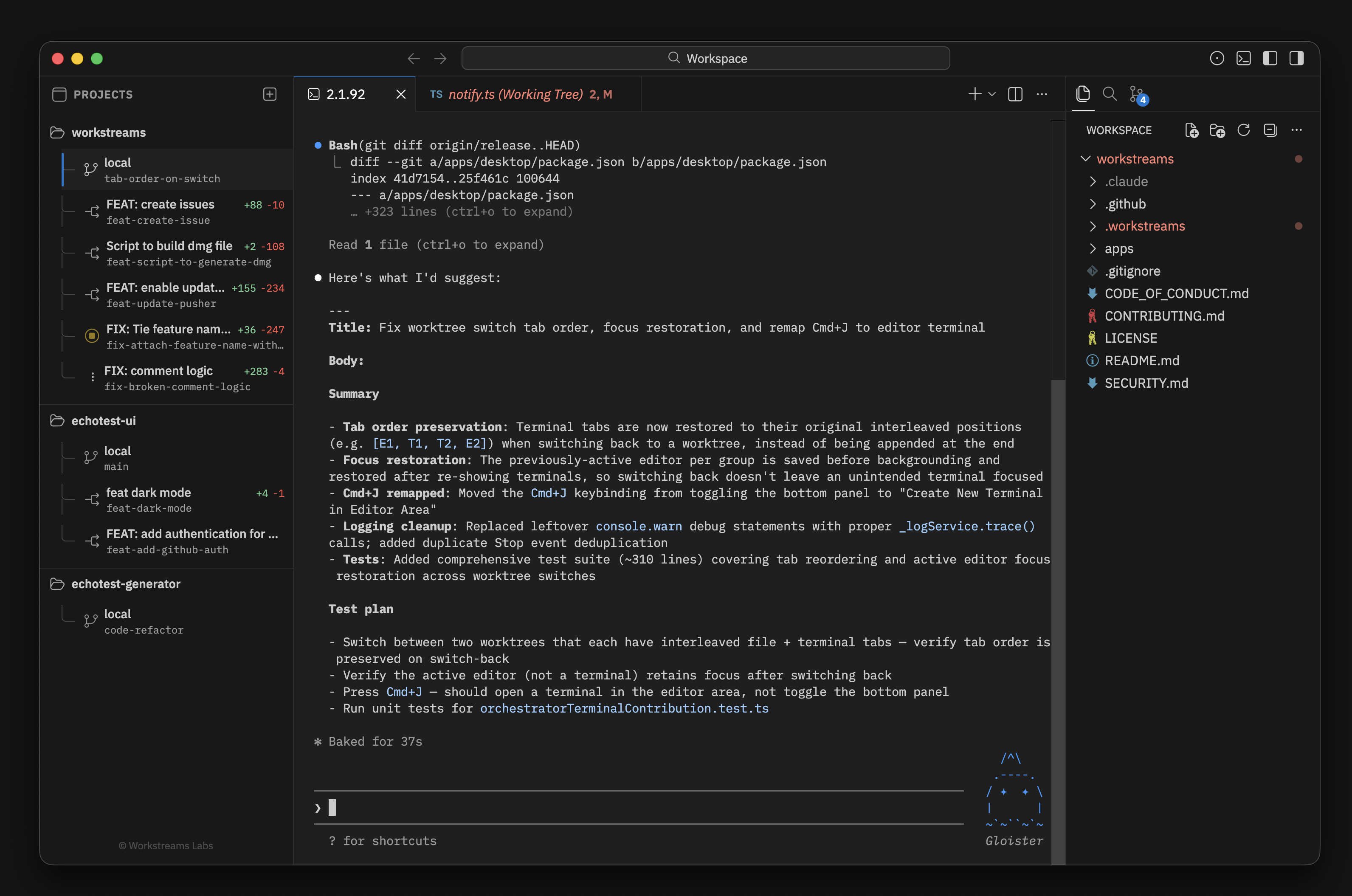
What the sidebar shows
Each repository section includes:
- the repository name
- a button to add another workstream
- the current
localcheckout - every created workstream under that repo
Each workstream row shows:
- the display name
- the underlying branch name
- live addition and deletion counts
- a lifecycle icon that reflects agent state
Stateful switching
The main desktop behavior is that switching workstreams preserves context.
Editors, split layouts, diff tabs, and terminal editors are restored per worktree. That makes each branch feel like a self-contained workspace instead of a disposable temporary directory.
Why the local entry matters
The local entry is your original repository root. It is not a generated worktree. It stays in the list so you can move back to your normal checkout without leaving the app.
Update banner
The bottom of the sidebar can show desktop update state:
- Update available
- Downloading update...
- Ready to update
When a release has a changelog URL, the banner also exposes a direct changelog action.
Refresh behavior
Sidebar state updates when:
- files change inside known worktrees
- agent session state changes
- terminal commands finish and modify git state
- the window regains focus after external changes
The result is a sidebar that stays close to the real repository state even if you edit from terminals or external tools.